> ## Documentation Index
> Fetch the complete documentation index at: https://docs.drip.re/llms.txt
> Use this file to discover all available pages before exploring further.
# User Dashboard
> The Dashboard is a central place for your community to manage points.
Creating the Dashboard
Only an administrator can create the dashboard
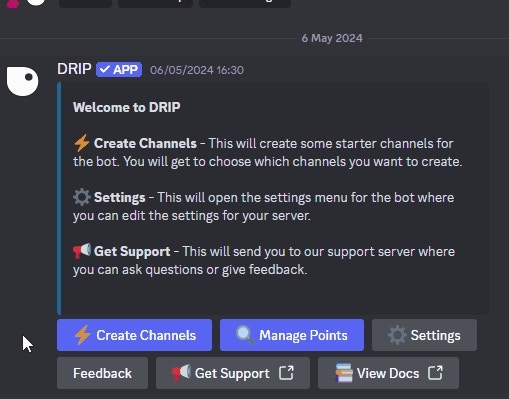
1. **Creating the Dashboard:** Visit the `#🛠┆admin` channel and click `Create Channels > Create Specific` and select "Dashboard".
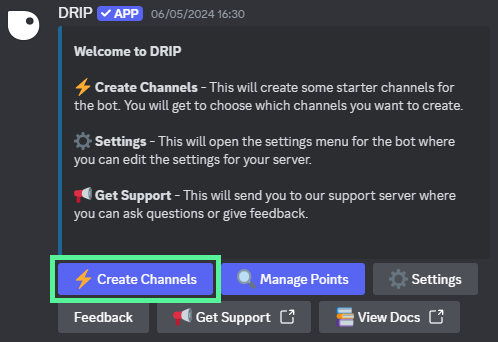 `#🛠┆admin`
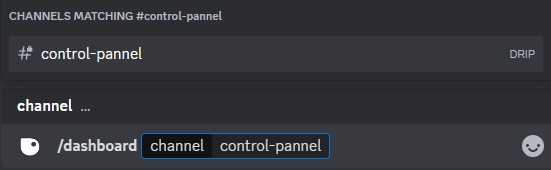
 1. You can create the dashboard Magic Embed in a channel directly by using the command `/dashboard ChannelName` - This can also be used to reset the Dashboard embed.
 ### Using the Dashboard
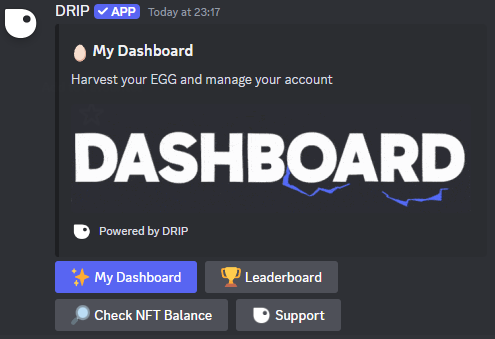 #### Buttons on the Main Embed:
* **⚡My Dashboard:** Navigate to your dashboard with details about points, NFTs, and more.
* **🏆 Leaderboard:** See other community members with the highest point counts.
* **🔎 Check NFT Balance:** Check the balance of specific NFTs from activated collections.
* **Support:** Join the Drip Discord for support and follow us on Twitter for the latest updates
**Pro Feature:** Right-click the embed then use `App > Edit` to change various features of your community dashboard including image, embed title, description, and color.

### Detailed Features:
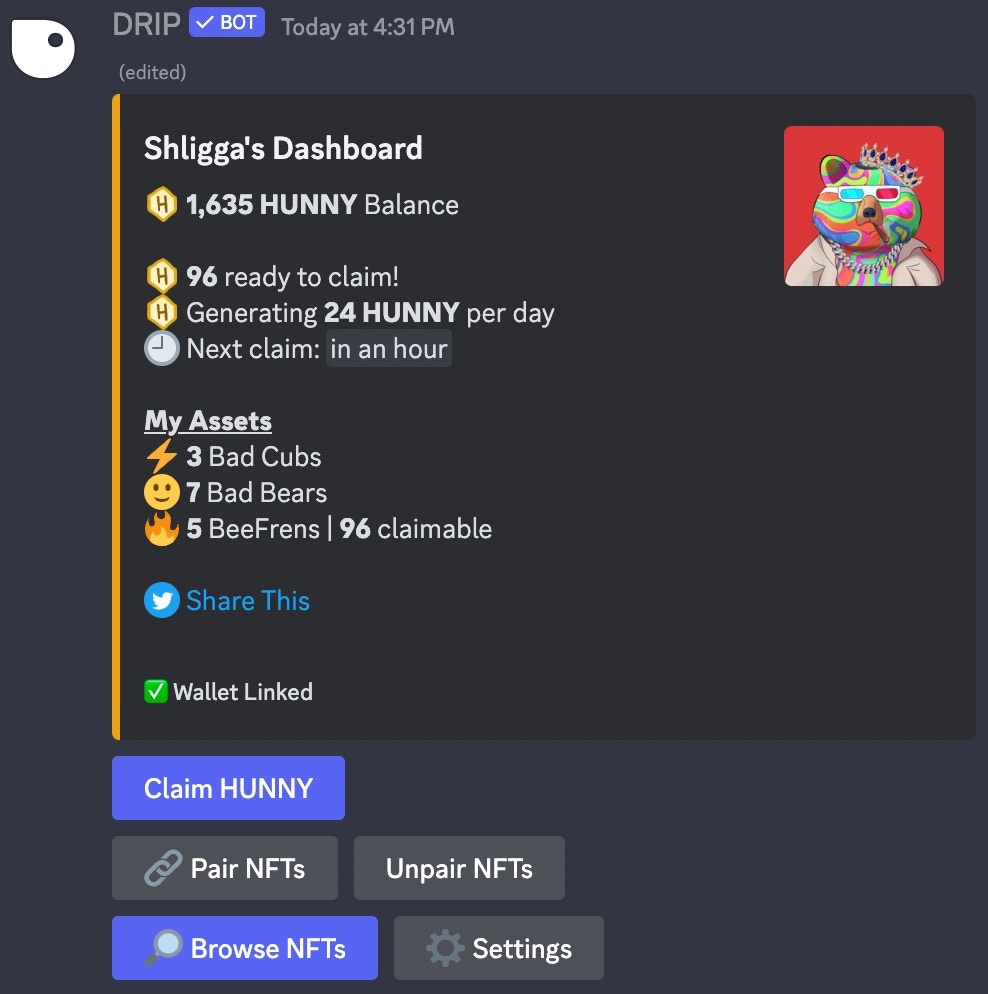
Displays an overview of your account:
* Points balance
* Daily points generation (yield)
* Time remaining until your next claim
* The number of NFTs you own from the server's activated collection(s).
#### Buttons on the Main Embed:
* **⚡My Dashboard:** Navigate to your dashboard with details about points, NFTs, and more.
* **🏆 Leaderboard:** See other community members with the highest point counts.
* **🔎 Check NFT Balance:** Check the balance of specific NFTs from activated collections.
* **Support:** Join the Drip Discord for support and follow us on Twitter for the latest updates
**Pro Feature:** Right-click the embed then use `App > Edit` to change various features of your community dashboard including image, embed title, description, and color.

### Detailed Features:
Displays an overview of your account:
* Points balance
* Daily points generation (yield)
* Time remaining until your next claim
* The number of NFTs you own from the server's activated collection(s).
 **Dashboard Buttons:**
1. **Claim Tokens:** Harvest all the Points from your NFTs.
2. **🔗 Pair/Unpair NFTs:** These buttons are visible only when the server has a multiplier. Use them to pair or unpair NFTs.
3. **🔎 Browse NFTs:** Navigate through your NFTs from activated collections. Check details and harvest tokens from generator NFTs. [Read More](/drip-features/user-dashboard/browse-nfts)
4. **⚙️ Settings:** Manage your Twitter account and Web3 Wallets – adding or removing them. [Read More](/drip-features/user-dashboard/user-settings/wallet-settings)
Displays community members with the highest point counts:
**Dashboard Buttons:**
1. **Claim Tokens:** Harvest all the Points from your NFTs.
2. **🔗 Pair/Unpair NFTs:** These buttons are visible only when the server has a multiplier. Use them to pair or unpair NFTs.
3. **🔎 Browse NFTs:** Navigate through your NFTs from activated collections. Check details and harvest tokens from generator NFTs. [Read More](/drip-features/user-dashboard/browse-nfts)
4. **⚙️ Settings:** Manage your Twitter account and Web3 Wallets – adding or removing them. [Read More](/drip-features/user-dashboard/user-settings/wallet-settings)
Displays community members with the highest point counts:
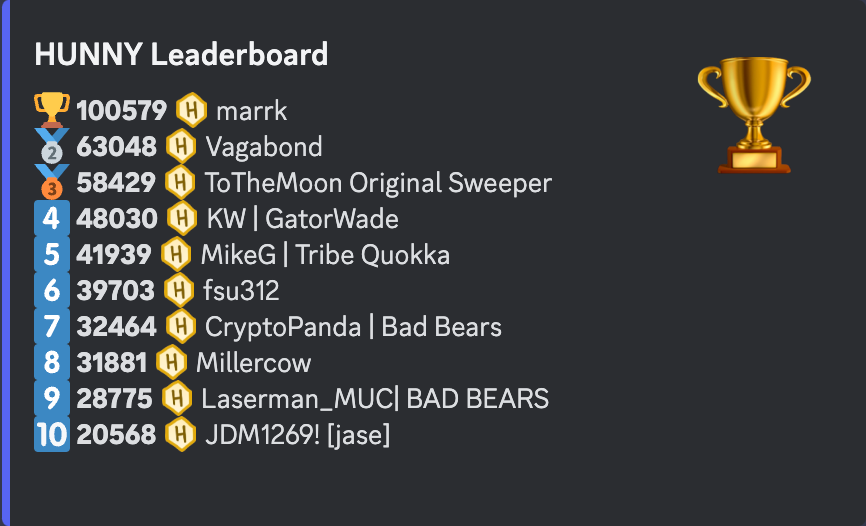 You can exclude certain roles from appearing in the Leaderboard. [Read more](/admin-settings/admin-dashboard/admin-settings/member-roles)
Admins can enable/disable the Leaderboard. [Read more](/admin-settings/admin-dashboard/admin-settings/points-settings)
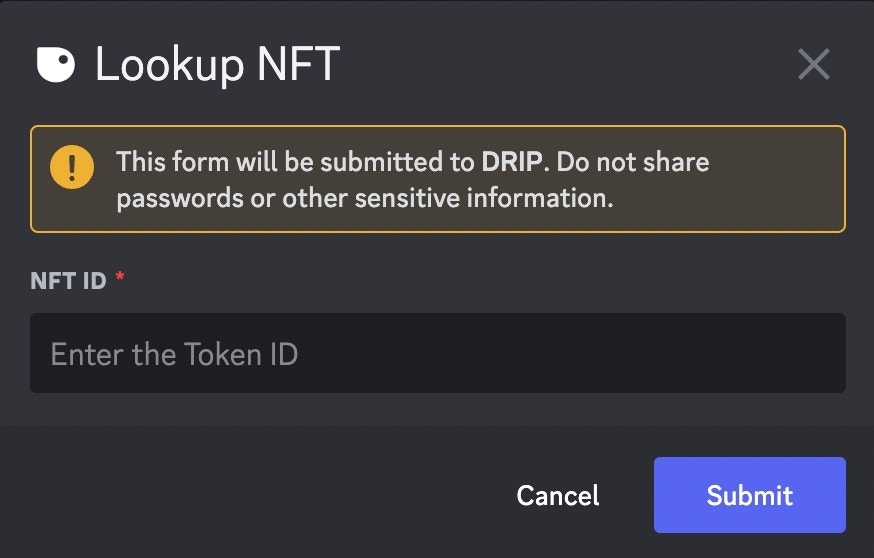
Enter the NFT ID of your choice from an activated collection to see how many points it holds.
You can exclude certain roles from appearing in the Leaderboard. [Read more](/admin-settings/admin-dashboard/admin-settings/member-roles)
Admins can enable/disable the Leaderboard. [Read more](/admin-settings/admin-dashboard/admin-settings/points-settings)
Enter the NFT ID of your choice from an activated collection to see how many points it holds.
 ### Learn More About:
The browse NFTs is the way for users to check their NFTs from imported collections and harvest generators.
The wallets section in the dashboard is the place to manage all of your wallets.
*Keywords: dashboard, leaderboard, points balance, claim points, pair/unpair NFTs, browse NFTs*
### Learn More About:
The browse NFTs is the way for users to check their NFTs from imported collections and harvest generators.
The wallets section in the dashboard is the place to manage all of your wallets.
*Keywords: dashboard, leaderboard, points balance, claim points, pair/unpair NFTs, browse NFTs*