> ## Documentation Index
> Fetch the complete documentation index at: https://docs.drip.re/llms.txt
> Use this file to discover all available pages before exploring further.
# Wallet Settings
> Manage and link your Web3 wallets
### Open wallet settings
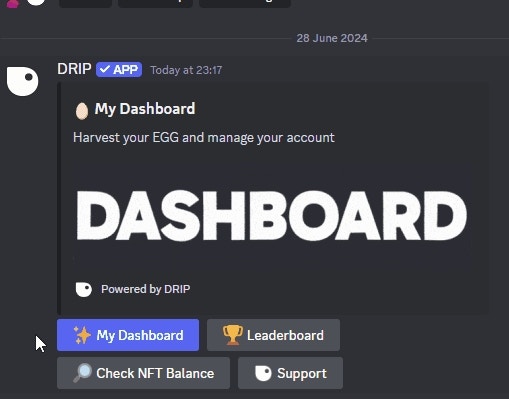 After clicking on the `✨ My Dashboard` button, click the `⚙️ Wallet Settings` \*\*\*\*button.
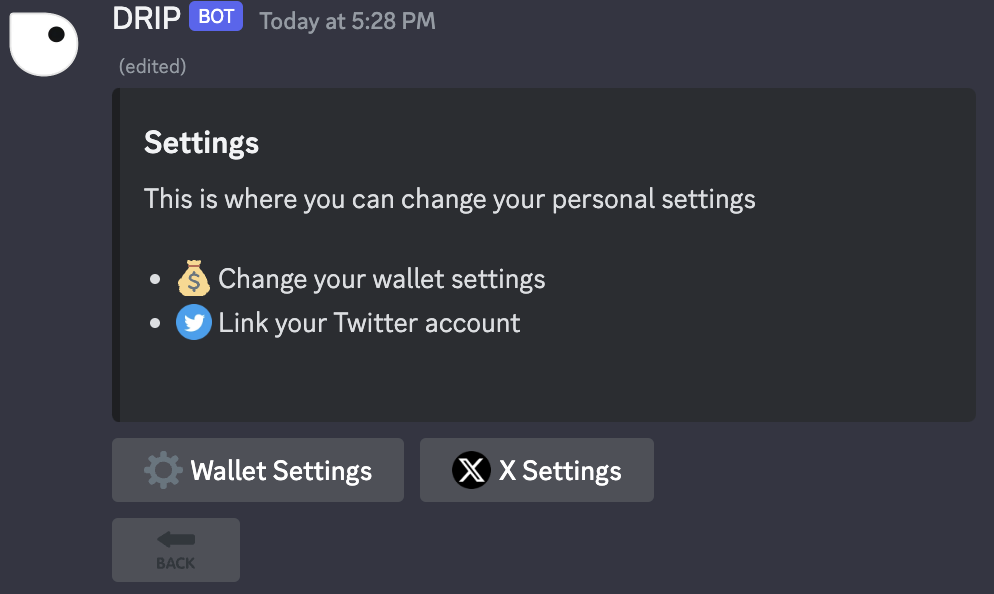 ### Adding a new wallet
You can add up to 10 wallets. To add a wallet use the green `➕` button.
### Adding a new wallet
You can add up to 10 wallets. To add a wallet use the green `➕` button.
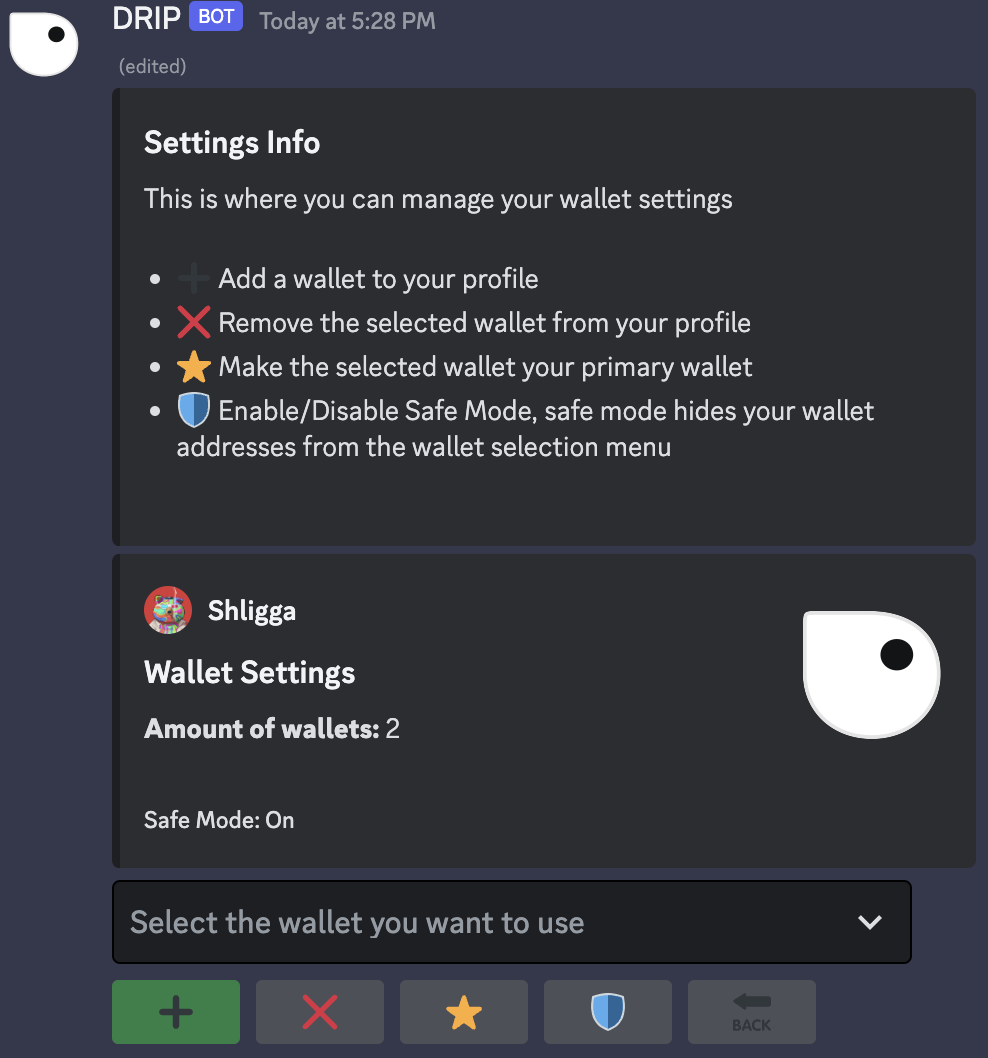 After using the button, you will get 2 options to add a wallet.
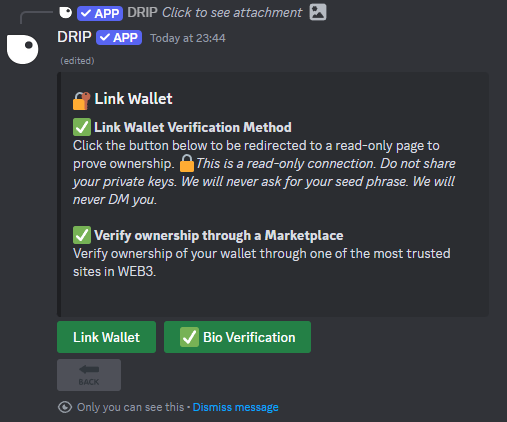 * Link wallet using a traditional wallet connect via a message signature
* Link wallet using an Marketplace bio verification system **(most secure)**
### Traditional Wallet Linking
If you choose the Traditional `Link Wallet` option, the following message is displayed:
* Link wallet using a traditional wallet connect via a message signature
* Link wallet using an Marketplace bio verification system **(most secure)**
### Traditional Wallet Linking
If you choose the Traditional `Link Wallet` option, the following message is displayed:
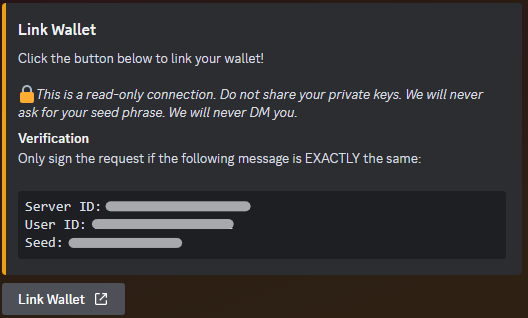 Use the Link Wallet button to go to the Wallet Connect page:
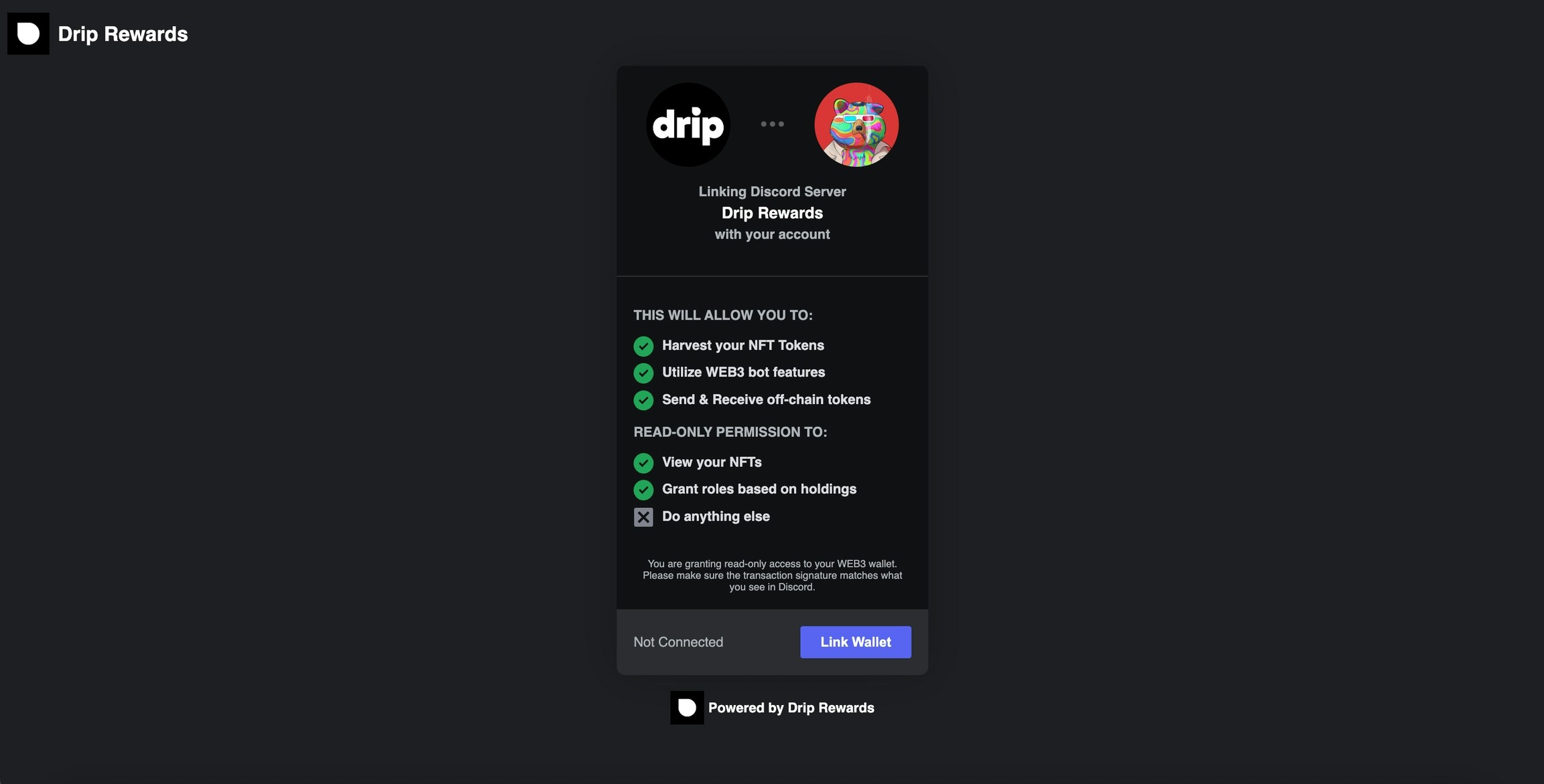 Click the Link Wallet button and choose the right wallet option.
Then, return to this page and use the `Link Wallet` button again. Check if the message matches the message from Discord. Sign only if it does.
Now your wallet is connected to your Discord account.
### Marketplace Bio Verification
Marketplace `Bio Verification` is the most secure linking option available because the signing happens on a website many people trust. For this example we will use OpenSea. If you choose this method, you will get the following window where you must enter your Marketplace username OR wallet address:
Click the Link Wallet button and choose the right wallet option.
Then, return to this page and use the `Link Wallet` button again. Check if the message matches the message from Discord. Sign only if it does.
Now your wallet is connected to your Discord account.
### Marketplace Bio Verification
Marketplace `Bio Verification` is the most secure linking option available because the signing happens on a website many people trust. For this example we will use OpenSea. If you choose this method, you will get the following window where you must enter your Marketplace username OR wallet address:
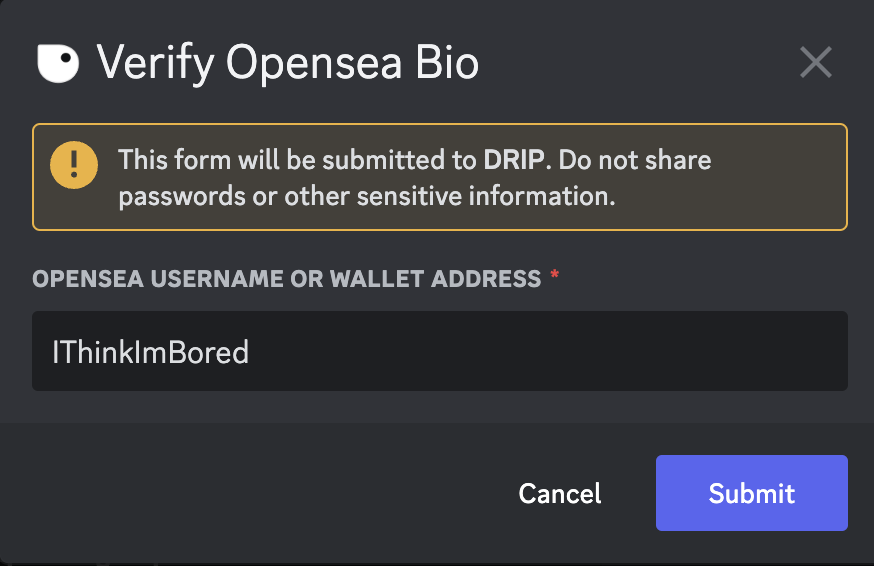 Once you click **Submit**, you will be given a secret code to paste into your Marketplace bio.
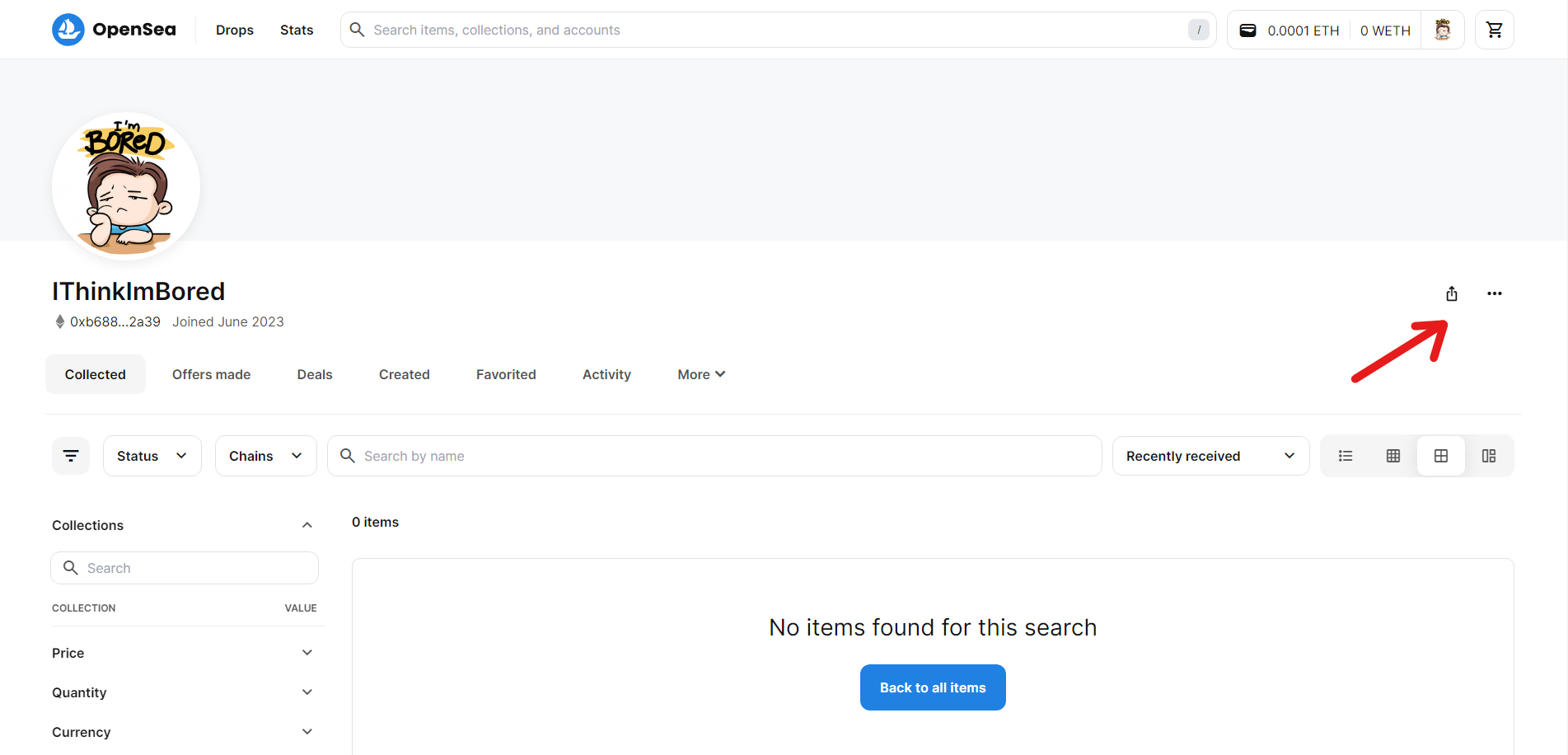
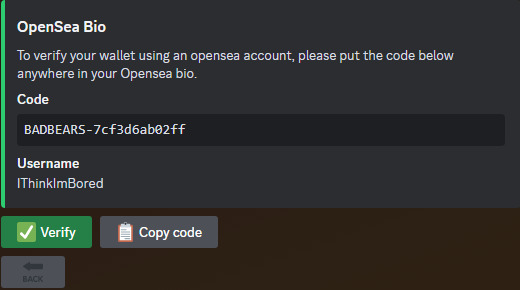 Now go to your OpenSea profile and click the 3 dots on the right side of your screen.
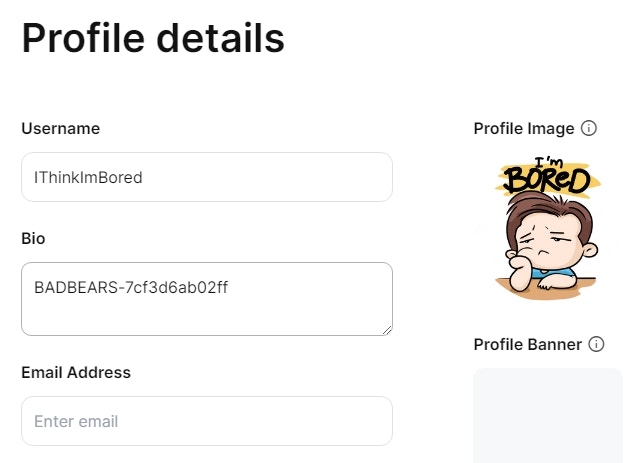
 Paste the code into the bio text field and click **save**.
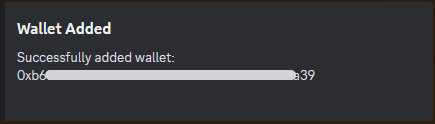
 Now go back to your discord and click the ✅**Verify** button. A message similar to the one below should be displayed.
 ### Unlinking a Wallet
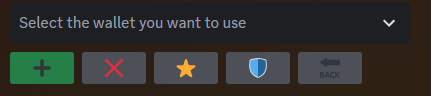
To unlink a wallet, use the "Select the wallet you want to use" dropdown menu to choose the wallet you want to unlink.
### Unlinking a Wallet
To unlink a wallet, use the "Select the wallet you want to use" dropdown menu to choose the wallet you want to unlink.
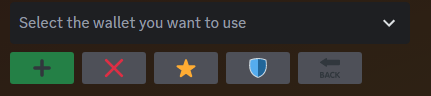 You will see that your message has been edited and displays the wallet you selected:
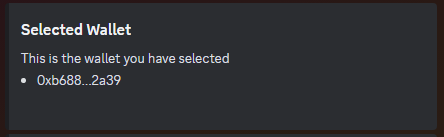 Click the ❌ button to unlink the selected wallet from your account.
### Setting Primary Wallet
The primary wallet is the wallet that is visible to server admins when they need to send out a prize or a purchased store item.
To set a wallet as your primary wallet, use the "Select the wallet you want to use" dropdown menu to choose the wallet you want to set as your primary wallet.
Click the ❌ button to unlink the selected wallet from your account.
### Setting Primary Wallet
The primary wallet is the wallet that is visible to server admins when they need to send out a prize or a purchased store item.
To set a wallet as your primary wallet, use the "Select the wallet you want to use" dropdown menu to choose the wallet you want to set as your primary wallet.
 You will see that your message has been edited and displays the wallet you selected:
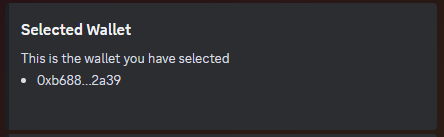 Click the ⭐ button to set the selected wallet as your primary wallet.
If a member has only 1 wallet, this will automatically be their primary
wallet.
*Keywords: wallets, manage wallets, link wallets, wallet settings, marketplace verification, bio verification, opensea verification, primary wallet*
Click the ⭐ button to set the selected wallet as your primary wallet.
If a member has only 1 wallet, this will automatically be their primary
wallet.
*Keywords: wallets, manage wallets, link wallets, wallet settings, marketplace verification, bio verification, opensea verification, primary wallet*