> ## Documentation Index
> Fetch the complete documentation index at: https://docs.drip.re/llms.txt
> Use this file to discover all available pages before exploring further.
# How do I whitelist Drip with Wick Bot?
> How to prevent Drip Rewards from being kicked by Wick Bot
The Wick Bot is a great tool for Discord security and is notorious for "wrongfully" kicking verified members/bots from servers if whitelist roles are not properly configured. Here is how you can set the Wick Bot to work together with Drip Rewards:
This is not a tutorial for the entire setup of the Wick Bot. If you have not
properly set up certain components, the whitelist may not work. Please refer
to Wick Bot documentation/support for initial setup and any ongoing issues.
### Types of Whitelist
The Wick Bot has 4 different types of whitelists, each allowing different members/roles to do different things without risk of consequence. It is your choice to whitelist Drip Rewards for the various categories that fit your needs best.
* **Spam Whitelist:** Allows members/roles to send multiple messages at a time and walls of text
* **Mentions Whitelist:** Allows members/roles to repeatedly mention other members and roles
* **Invite Links Whitelist:** Allows members/roles to post invite links to other Discord servers
* **@Everyone Whitelist:** Allows members/roles to mention @everyone and other public roles
The process for whitelisting a member/role with the Wick Bot is the same for all 4 types. For this example, we will be showing you how to give Drip Reward the Mentions Whitelist.
### How to Whitelist Drip Rewards
If using Wick Premium, you must ensure Anti-Nuke Protection is disabled before
installing or setting up Drip Rewards
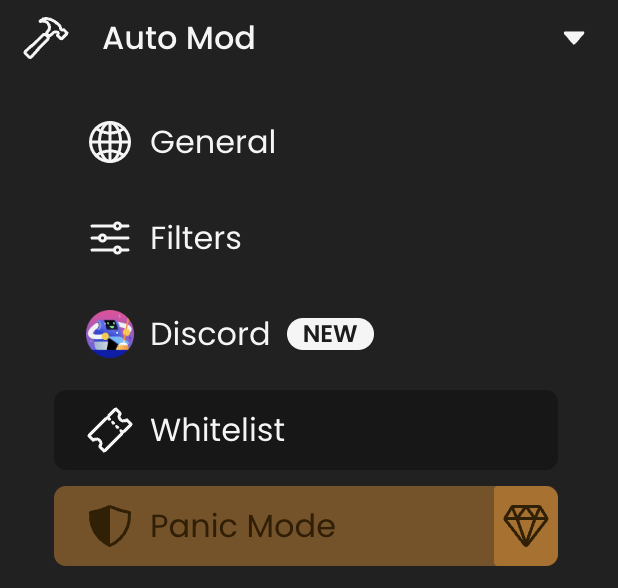
Navigate to your server's Wick Dashboard and click on Whitelist in the Auto Mod category. Ensure Auto Mod is properly set up beforehand.
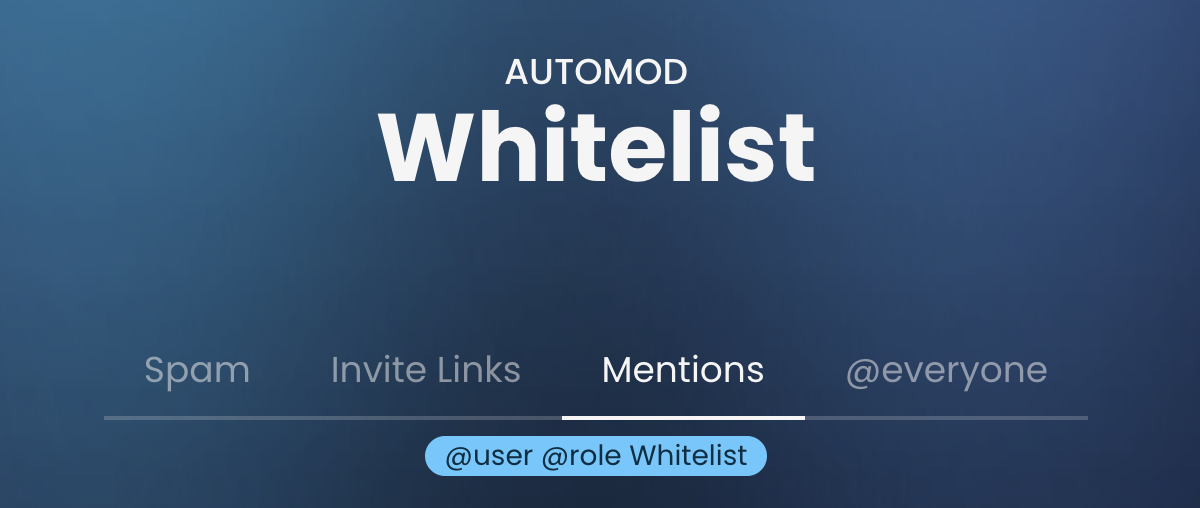
 Click on the Mention tab to modify whitelist permissions
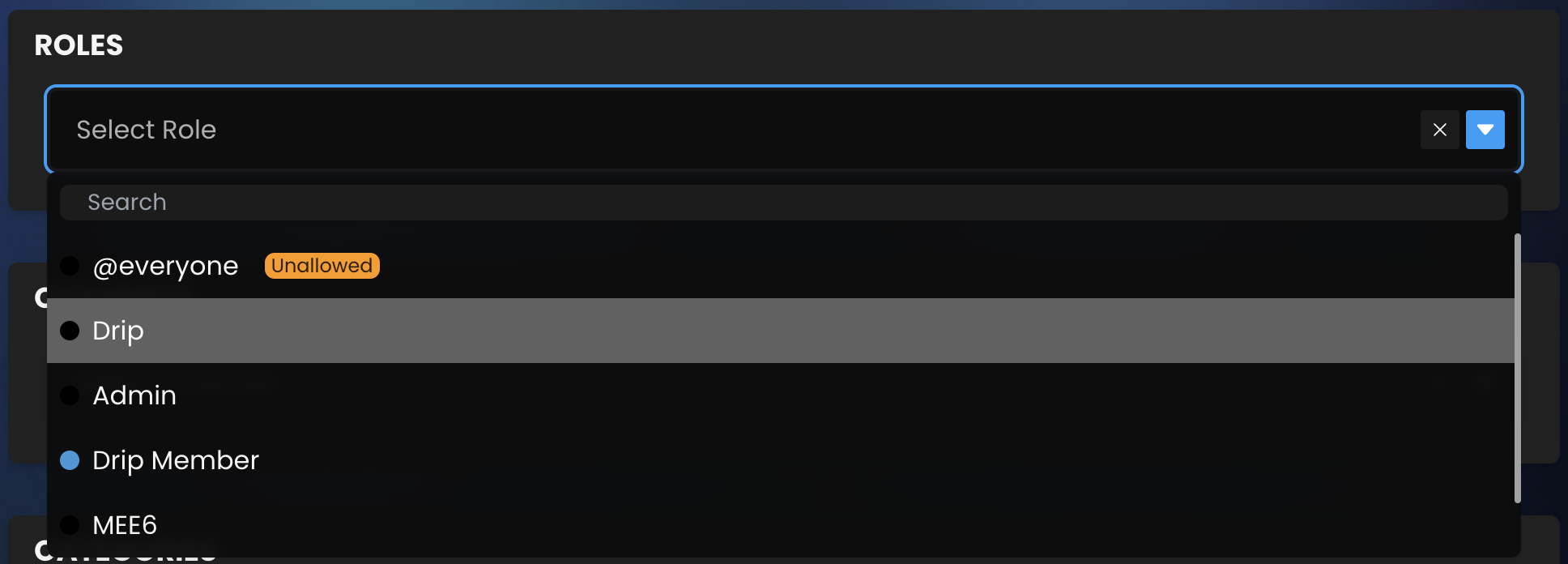
 Click on the dropdown menu under Roles and select the Drip role to whitelist Drip Rewards
 Be sure to save your changes!
Drip Rewards should now be able to mention members without consequence from the Wick Bot. The process is the same for the other 3 categories.
Be sure to save your changes!
Drip Rewards should now be able to mention members without consequence from the Wick Bot. The process is the same for the other 3 categories.