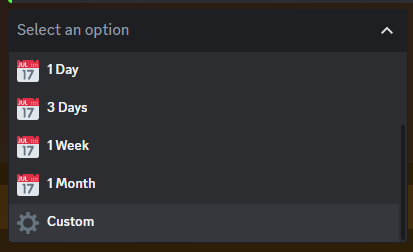
Here you can set the end time of your giveaway. There are some preset options you can use or you can set a custom time.
End Time Options Prize
If you would like to set a custom end date, there are 2 options:
Relative Time Format
Custom Timestamp
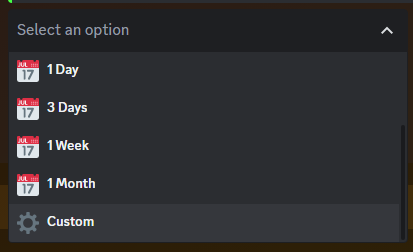
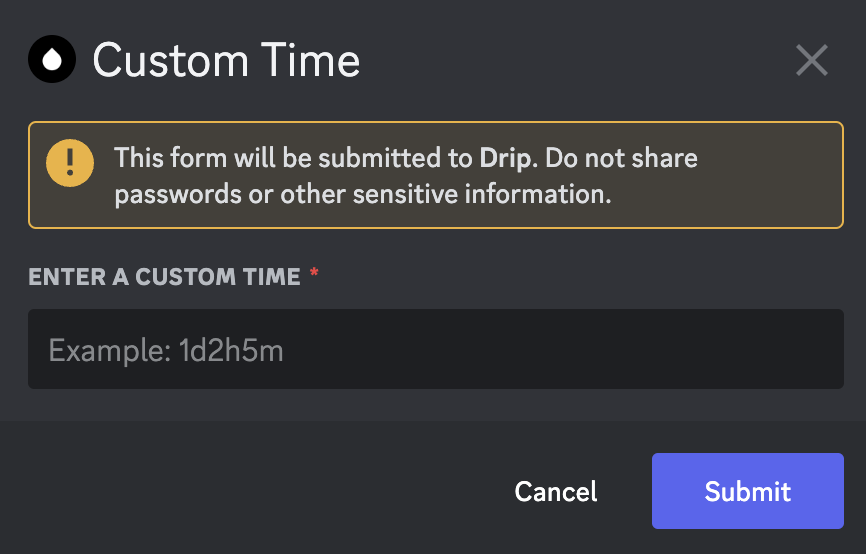
To set a custom end date by using the Relative Time Format, scroll down in the select menu and click the option ⚙️Custom.Once you click the option, enter the time in the correct format and click Submit.Time format options:
‘y’ for years
‘M’ for months (Capital)
‘w’ for weeks
‘d’ for days
‘h’ for hours
‘m’ for minutes (Lowercase)
Relative Time Format
Custom Timestamp Option
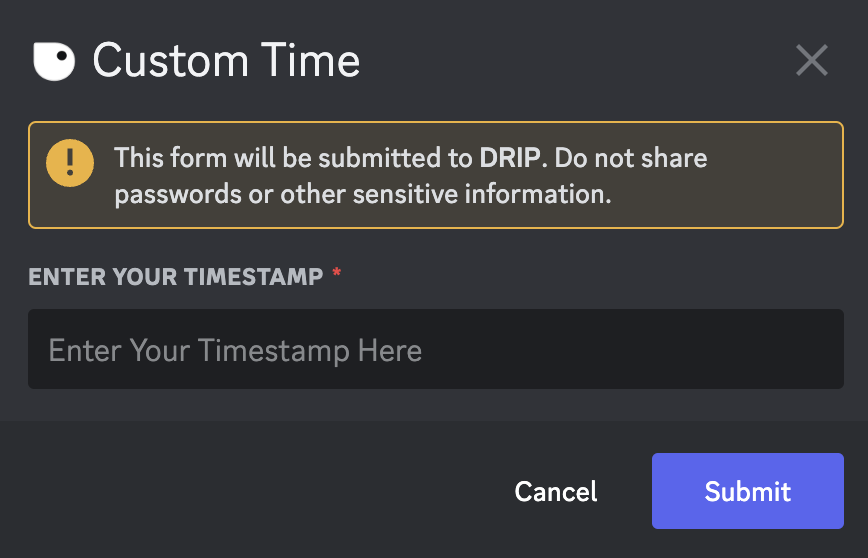
A custom timestamp gives you absolute control over when your giveaway ends down to the second.How to get the timestamp?Go to this website, and select the date and time you want your giveaway to end. Then, click Submit. In Common Date Formats, copy the timestamp. Now click Enter Timestamp below and paste it into the form.
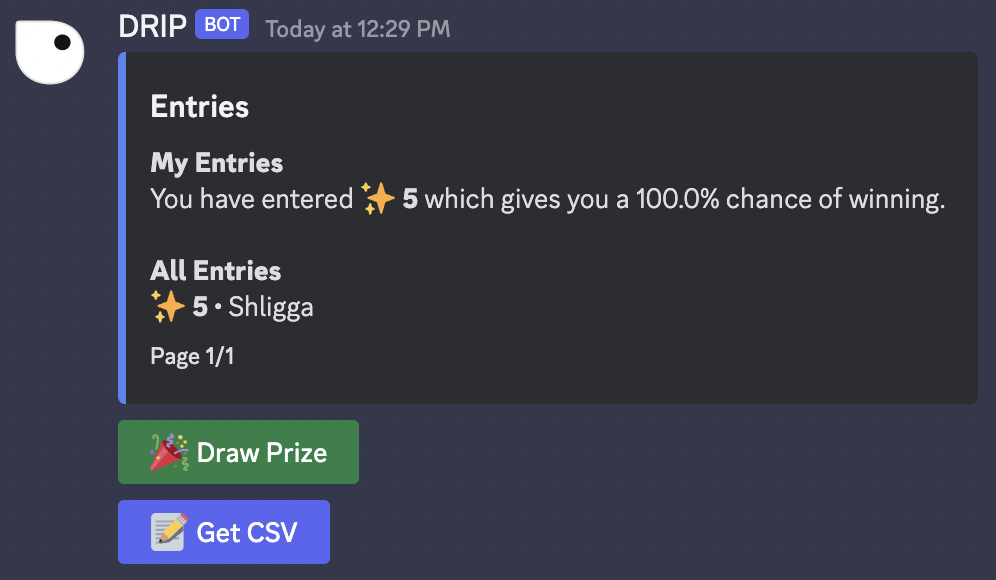
A prize can only be drawn by a prize master or administrator. To do this go to the Prize, click 🎉Draw Prize.
Click "Draw Prize" to pick a winner
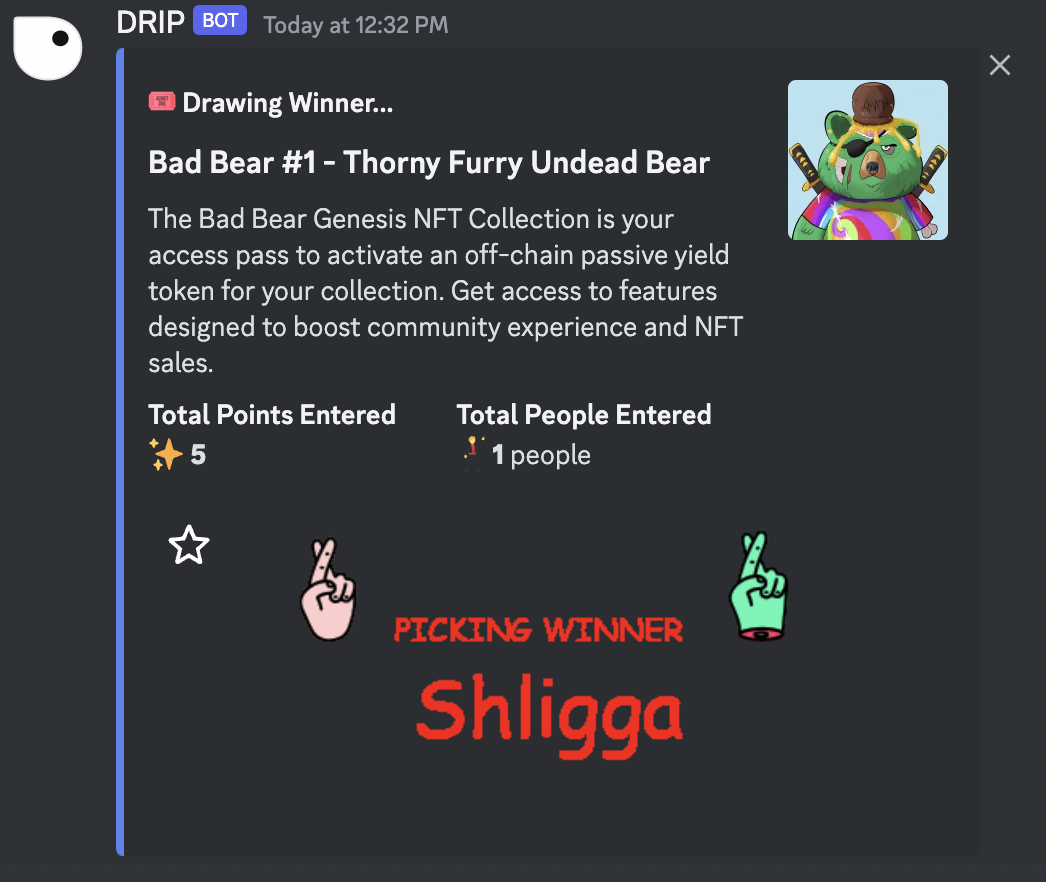
Once you have confirmed, the bot will choose a winner from the members who have entered. Each entry is a chance to win, the more they enter the greater their chance of winning.
Draw a Prize
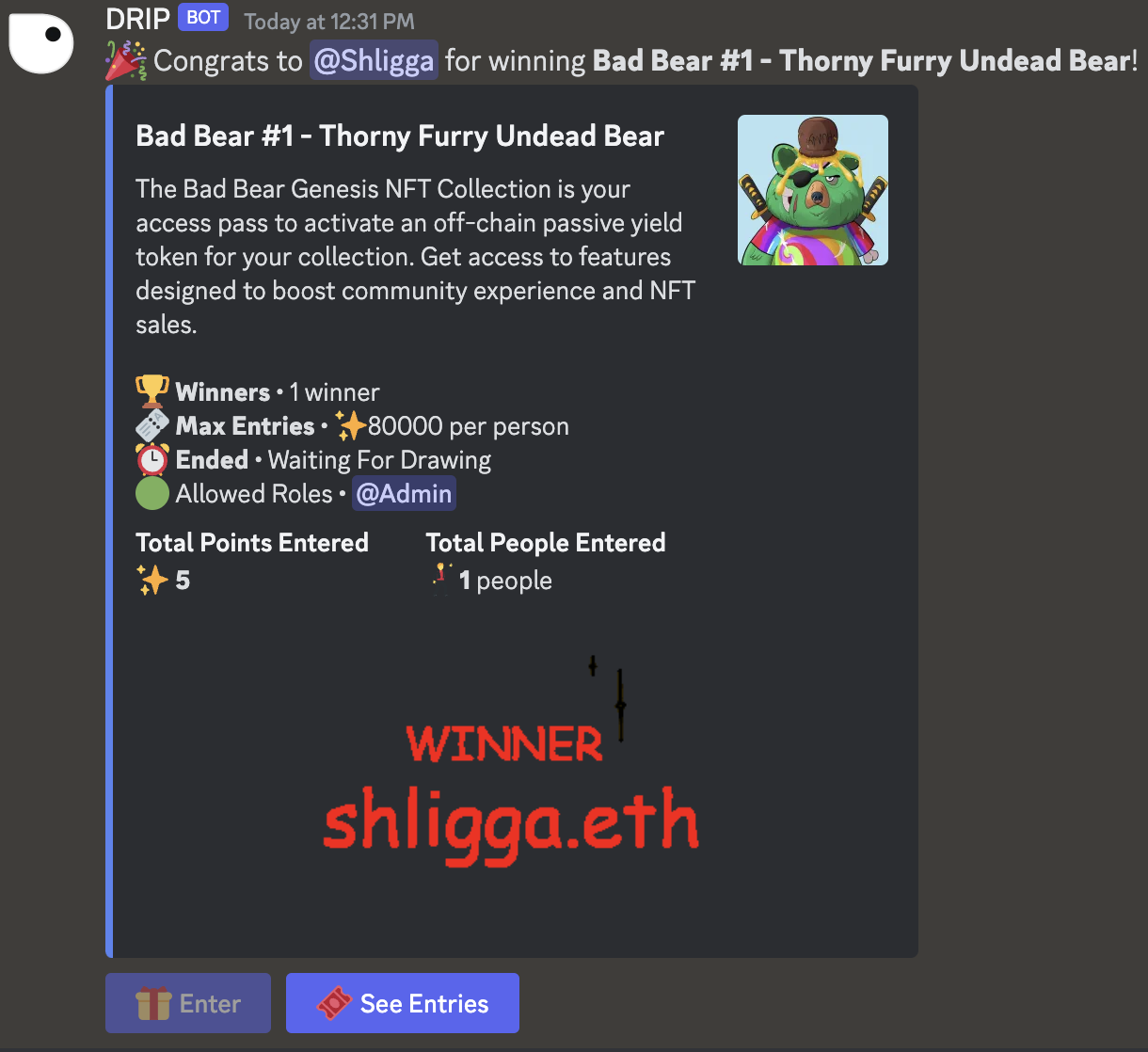
Once a winner is chosen, the message will be updated.
Winner Chosen
A prize can always be redrawn by following the exact same steps from above.